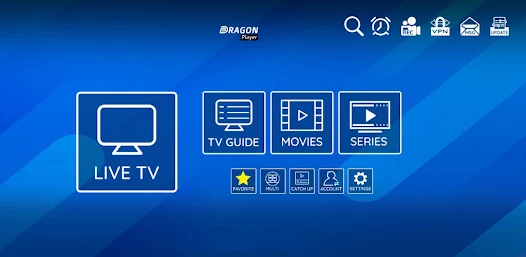
XCIPTV Player is one of the most popular applications for accessing TV content via the Internet. However, many users encounter problems with XCIPTV that can turn a TV evening into a real headache. Whether you're experiencing error messages, black screens or connection problems with XCIPTV, This article will guide you through all the possible solutions for getting your application back up and running, and also present the best alternatives available in 2025.
Why XCIPTV no longer works: The main causes
Understanding the origin of the problem is the first step towards solving it. Malfunctions in this application can have several distinct origins, and it's important to identify them correctly.
Login and identification problems
One of the most frequent reasons why the application refuses to work concerns login credentials. When you see the message «Connection failed! Please check your server address, username and password», several factors may be at play. The credentials may have been mistyped during initial configuration, with an extra space or missing character. Some users copy and paste their codes from an email or document, which may introduce invisible characters that prevent login.
The identifier structure for this application follows a precise format. The server URL must be entered exactly as supplied by your service provider, usually in the form of a complete address including the http or https protocol. User names and passwords are case-sensitive, which means that upper and lower case must be strictly observed.
IPTV servers down or overloaded
The servers that host video streams can experience periods of downtime or overload. Unlike large platforms like Netflix, which have massive infrastructures, some providers use less robust servers that can saturate during peak viewing times. Weekend evenings and major sporting events are particularly prone to temporary slowdowns or outages.
When servers are overloaded, you may observe several typical symptoms: excessive buffering, strings that don't load, or applications that regularly disconnect. These problems are not directly related to your local installation, but rather to the remote infrastructure over which you have no control.
Expired subscription or incorrect login
An obvious but often overlooked cause of operational problems is an expiring subscription. Many providers immediately cut off access as soon as the subscription expires, with no grace period. Some services send reminders by email, but these messages can easily get lost in spam or simply be ignored.
Providers sometimes change their servers or authentication systems, which may invalidate your old credentials even if your subscription is still active. In such cases, you will need to obtain new codes from your provider to continue using the service.
Device compatibility problems
Updates to your device's operating system may create incompatibilities with certain versions of the application. Smart TV manufacturers such as Samsung and LG regularly release updates that can change the way third-party applications interact with the system. An application that was working perfectly may suddenly refuse to launch or close unexpectedly after a system update.
Insufficient storage space is also a frequent problem, particularly on Android TV devices or multimedia boxes. When internal memory is saturated, the application can't create the temporary files it needs to function, leading to freezes or playback errors.
Quick solutions when XCIPTV stops working
Before embarking on complex manipulations, some simple solutions can resolve the majority of problems encountered. These quick actions take just a few minutes and often restore normal operation.
Check your Internet connection
The quality of your Internet connection directly determines the smoothness of your viewing experience. For streaming standard-definition content, a minimum speed of 5 Mbps is required. For high-definition channels, a minimum of 10 Mbps is required, and for 4K, a minimum of 25 Mbps is recommended.
Test your connection speed using a service like Speedtest or Fast.com from your streaming device. If the results show insufficient speed, try restarting your router by unplugging it for 30 seconds before plugging it back in. This simple procedure can solve many connection problems.
If you're using Wi-Fi, try moving your device closer to the router or, better still, use a wired Ethernet connection. Cable eliminates wireless interference problems and offers a much more stable connection, particularly important for quality video streaming.
Clear application cache
Cache files accumulate temporary data that can become corrupted over time. Go to your device settings, find the Applications or Application Manager section, then locate XCIPTV Player in the list. Select the application and look for the Storage option, where you'll find the button for clearing the cache.
This operation only deletes temporary files, without affecting your personal settings or login details. After clearing the cache, restart the application to see if the problem has been solved. This simple operation frequently solves problems such as black screen, image freeze or slow menu navigation.
Reinstall XCIPTV Player
When simply clearing the cache isn't enough, a full reinstallation may be necessary. Start by uninstalling the application from your device by holding down its icon and selecting the uninstall option. On Android devices, you can also go through the system settings for a more thorough uninstall.
After deleting the application, restart your device before installing it again. Download the latest version from the official website or from a reliable source. Avoid dubious download sites which may offer modified versions containing malware.
Once the installation is complete, set up your credentials again, taking care to enter them exactly as supplied by your service provider. A fresh installation eliminates any potentially corrupted files that may have caused malfunctions.
Update your IPTV login
If you have recently received new access codes from your provider, make sure you enter them correctly in the application. Open Settings and access the user account configuration section. Delete the old profile if necessary, then create a new one with your updated credentials.
When entering the server URL, make sure you use the exact format provided. Most errors are caused by a truncated URL or a missing protocol. The address should generally include http:// or https:// at the beginning, followed by the full domain name. Some providers use specific ports which must also be included in the URL.
Restart your device
A complete reboot of your device may seem trivial, but this action solves a surprising number of technical problems. Switch off your Smart TV, Android box or smartphone completely, then wait at least 30 seconds before switching it back on. This pause allows all electronic components to reset themselves completely.
Restarting frees up RAM occupied by background processes, closes applications that may be blocked, and resets network connections. After restarting, run the application directly to check if the problem persists. This simple operation solves around 30% of the problems encountered by users.
Specific XCIPTV problems and detailed solutions
Some dysfunctions require more targeted approaches, depending on the symptoms observed. Here are the most frequently reported problems and their specific solutions.
Connection failed« error message»
This frustrating message appears when you try to connect to the service. Several factors may be responsible. Start by carefully checking each element of your credentials. The server URL must be complete and accurate. Many users forget to include the port or accidentally add spaces before or after the address.
If your credentials are correct, the problem may lie with your VPN if you're using one. Some servers block connections from VPNs for reasons of security or geographical rights. Try temporarily disabling your VPN to see if this re-establishes the connection. If it does, you'll need to either use the application without a VPN, or switch to a different VPN server that isn't blocked.
Firewalls on some routers or security software installed on your device may also block connections. Check your router's security settings and make sure that the application is authorized to communicate freely with the Internet. On Android devices, also check the permissions granted to the application in the system settings.
Constant buffering and cuts
Excessive buffering quickly turns a pleasant viewing experience into an ordeal. This problem is usually the result of a mismatch between your available bandwidth and the quality of the requested stream. In the playback settings, look for the option to adjust stream quality and select a lower resolution.
The type of decoder used also influences performance. Access the application's advanced settings and experiment with decoding options. Switch from hardware to software decoding, or vice versa, depending on your device. Older models often work better with software decoding, while newer devices benefit from hardware decoding, which places less strain on the main processor.
Increase the buffer size in the application settings. A larger buffer takes a few extra seconds to start playback, but then ensures much smoother playback. Set the buffer to 5 to 10 seconds to achieve a good balance between start-up delay and playback stability.
Channels that won't load
When some channels refuse to load while others work correctly, the problem often lies with the playlist itself. Your provider may have changed URLs or removed some channels without updating your playlist. Contact your provider for an updated list, or check whether automatic updating is available in the settings.
Stream formats can also be a problem. In the playback settings, look for the Stream Type option and toggle between HLS and MPEGTS. The HLS format generally offers better compatibility with variable Internet connections, while MPEGTS can offer superior quality over stable connections.
If a specific channel never works, it may simply be unavailable or have changed source. Try playing the same channel on a different device or with a different application to confirm that the problem is not with your local installation.
Application closes automatically
Unexpected application shutdowns usually indicate a memory or system compatibility problem. First check the available storage space on your device. If you have less than 2 GB of free space, delete unnecessary applications or files to free up space.
On Samsung and LG Smart TVs, disable power-saving functions that can interrupt background applications. Go to your TV's general settings and disable auto sleep or power save modes when using streaming applications.
The application version may also be to blame. Make sure you're using the latest version available. Developers regularly release corrective updates to resolve stability problems. If you're using an obsolete version, the update can instantly resolve unwanted closures.
Comparative table of solutions by type of problem
| Type of problem | Probable cause | Quick solution | Advanced solution |
|---|---|---|---|
| Connection failure | Incorrect identifiers | Check and re-enter codes | Contact the supplier for new identifiers |
| Buffering constant | Slow Internet connection | Reduce flow quality | Switch to wired connection, change decoder |
| Black screen | Cache corrupted | Empty application cache | Reinstall application completely |
| Missing chains | Obsolete playlist | Update M3U list | Get new playlist from supplier |
| Application closes | Insufficient memory | Free up space | Disable energy saving, update |
| No sound | Audio configuration | Check volume and audio output | Change drive in settings |
| Reading error | Unsuitable decoder | Change stream type HLS/MPEGTS | Toggle hardware/software decoding |
The best alternatives to XCIPTV in 2025
If, despite all your attempts, the application stubbornly refuses to work, or if you simply want to explore other options, there are several excellent alternatives on the market.
IPTV Smarters Pro
This application has established itself as the market benchmark, thanks to its elegant interface and remarkable stability. Compatible with most playlist formats, it offers a particularly polished user experience. The application supports live streams, video-on-demand and TV series in a unified interface.
Set-up takes just a few minutes. You can add several different accounts, making it easy to manage multiple subscriptions or share the device with your family. The integrated electronic program guide makes it easy to plan your viewing, and the favorites function gives you quick access to your favorite channels.
TiviMate
TiviMate is probably the most advanced application for demanding users. Its interface is reminiscent of a traditional TV set-top box, yet offers modern functionality. The free version already offers numerous options, but the premium version unlocks advanced features such as program recording and multi-screen viewing.
The application shines particularly brightly in its extensive customization. You can adjust virtually every aspect of the interface, from colors to menu layouts. The automatic categorization system intelligently organizes your channels by content type, making it easy to navigate through lists of hundreds of channels.
OTT Navigator
This application offers an unrivalled level of customization for users who like to have total control over their experience. The interface can be completely reconfigured according to your preferences, with options for creating custom groups, advanced filters and multiple views.
OTT Navigator excels at managing very large channel lists. Its powerful search engine enables you to find any content quickly, even in playlists with thousands of entries. The intelligent caching function preloads channel information for ultra-fast browsing.
Perfect Player
This minimalist application impresses with its lightness and efficiency. Unlike heavier solutions, Perfect Player consumes very few system resources, making it ideal for older or less powerful devices. Despite its sober interface, it is nonetheless highly functional.
The application supports all common playlist formats and offers customization options to adapt the display to your tastes. Users particularly appreciate its stability and speed of response, even on modest devices. The learning curve is gentle, making the application accessible even to beginners.
GSE Smart IPTV
GSE Smart IPTV offers an all-in-one approach with a comprehensive set of integrated features. The application manages not only live streams, but also your local media, podcasts and even Internet radio in a unified interface. This versatility makes it a complete multimedia center.
Integrated security options include password protection and parental controls, particularly useful in a family context. The application also enables easy import and export of playlists, facilitating migration from other applications or sharing of configurations between devices.
How to migrate from XCIPTV to an alternative
The transition to a new app may seem daunting, but the process is usually quick and easy. Start by downloading and installing the chosen alternative application on your device. Make sure you download from an official or reliable source to avoid potentially dangerous modified versions.
Before uninstalling your old application, take careful note of all your important settings: Server URL, username, password, and any specific configuration you had set up. Take a screenshot or note this information in a safe place. Some applications allow you to export your settings to a file, which makes migration much easier.
Launch your new application and follow the initial configuration process. Most modern applications offer several methods for adding content: manual entry of credentials, import of an M3U URL, or even QR code scanning in some cases. Choose the method that suits your subscription type.
After entering your login details, let the application load the channel list and program guide. This may take a few minutes, depending on the size of your playlist. Once loading is complete, explore the various settings to adjust the experience to your preferences: playback quality, channel organization, interface appearance.
Test playback on several different channels to make sure everything is working properly. In particular, check the channels you watch most often. If some don't work, try adjusting the decoding or stream type settings as explained above.
Tips to avoid future problems with IPTV applications
Prevention is always preferable to problem-solving. Adopt these best practices to minimize the risk of malfunctions in your streaming applications.
Always keep your applications up to date by enabling automatic updates whenever possible. Developers regularly correct bugs and improve compatibility with new versions of operating systems. An obsolete application becomes progressively more unstable and vulnerable.
Clean up your application cache regularly, ideally once a month. This preventive maintenance prevents the accumulation of corrupted files that can cause slowdowns or bugs. On most devices, you can schedule automatic clean-ups via system maintenance applications.
Choose a reliable service provider with responsive customer support. The quality of your experience depends largely on stable servers and regularly updated channel lists. Be wary of overly tempting offers that quote ridiculously low prices for thousands of premium channels.
Invest in a quality Internet connection, especially if you regularly view high-definition content. A fast, stable connection solves most buffering and clipping problems in advance. If possible, opt for a wired connection for your main streaming device.
Use a quality VPN to protect your privacy and bypass any geographic restrictions. Some ISPs restrict bandwidth for streaming, a practice that using a VPN can circumvent. Make sure, however, that your VPN is compatible with your service and is not blocked by it.
Conclusion
Problems encountered with this popular application can generally be resolved by methodically following the solutions presented in this article. Always start with the simplest steps, such as checking your Internet connection and restarting your device, before moving on to more complex solutions.
If, despite your best efforts, the application refuses to work properly, don't hesitate to explore the many alternatives available. The market for Internet TV applications is rich and varied, offering solutions to suit all user profiles and device types.
Remember that the quality of your experience depends on three main factors: the reliability of your Internet connection, the stability of your content provider, and the quality of the application you're using. By optimizing these three elements, you can ensure a smooth and enjoyable viewing experience.
FAQ: Answers to frequently asked questions about problems with XCIPTV
Why does XCIPTV display «Connection failed» even though my credentials are correct?
There are a number of reasons why this message may appear even with the correct login details. Your provider may have changed the address of its servers without notifying you, rendering your old settings obsolete. An active VPN may also block the connection if the server refuses connections from certain locations. Try temporarily disabling your VPN and contact your provider to confirm that your codes are still valid and to obtain the latest connection settings.
The application automatically closes on startup. What should I do?
Immediate shutdowns on launch usually indicate a lack of memory or incompatibility with your system. First check that you have at least 2 GB of free space on your device. Then make sure you're using the latest version of the application compatible with your device. If the problem persists after freeing up space and updating, try a complete uninstall followed by a fresh reinstall of the most recent version.
How to solve constant buffering problems?
Excessive buffering almost always results from a mismatch between your bandwidth and the quality of the requested stream. Test your Internet speed and if it's below 10 Mbps, reduce the playback quality in the application settings. Switch to an Ethernet connection if possible, as Wi-Fi is prone to interference. Finally, increase the buffer size in the application's advanced settings to 5-10 seconds for more stable playback.
My channels are displayed but won't launch. What's the solution?
This problem often arises when the stream format used is not compatible with your configuration. Go to the playback settings and switch between the HLS and MPEGTS options in the Stream Type section. Also try changing the decoding mode between hardware and software. If specific channels never work, they may have been removed from your subscription or may be temporarily unavailable on the server side.
Do I need to use a VPN with this application?
Using a VPN is not mandatory, but strongly recommended for several reasons. A VPN protects your privacy by encrypting your Internet traffic and masking your activities from your ISP. It also allows you to bypass any geographic restrictions, and can improve performance if your ISP limits bandwidth for streaming. Choose a reputable VPN that doesn't log your data and offers fast servers optimized for streaming.
What's the best alternative if the application really doesn't work?
TiviMate is probably the best alternative for users looking for a complete, professional experience. Its polished interface, extensive functionality and exemplary stability make it a preferred choice. For less powerful devices, Perfect Player offers excellent performance with minimal resource consumption. IPTV Smarters Pro is also a solid option with simplified configuration, ideal for beginners.
How do I know whether the problem is with the application or my supplier?
Test your subscription with a different application such as IPTV Smarters Pro or TiviMate, using exactly the same credentials. If the service works perfectly with another application, the problem is indeed with your current installation. If none of the applications can connect, or if they all malfunction in the same way, the problem lies with your provider or your Internet connection. Contact your provider to report the problem.
The application worked well yesterday but not today, why?
Sudden outages after a period of normal operation often suggest a problem on the server side rather than a local failure. Your provider may be carrying out maintenance work, experiencing a technical failure or have changed its connection settings. Please wait a few hours before attempting any complex operations, as the service may restore itself automatically. If the problem persists beyond 24 hours, contact your provider for information on the status of the service.